
Swipe to delete
Done? Swipe it away
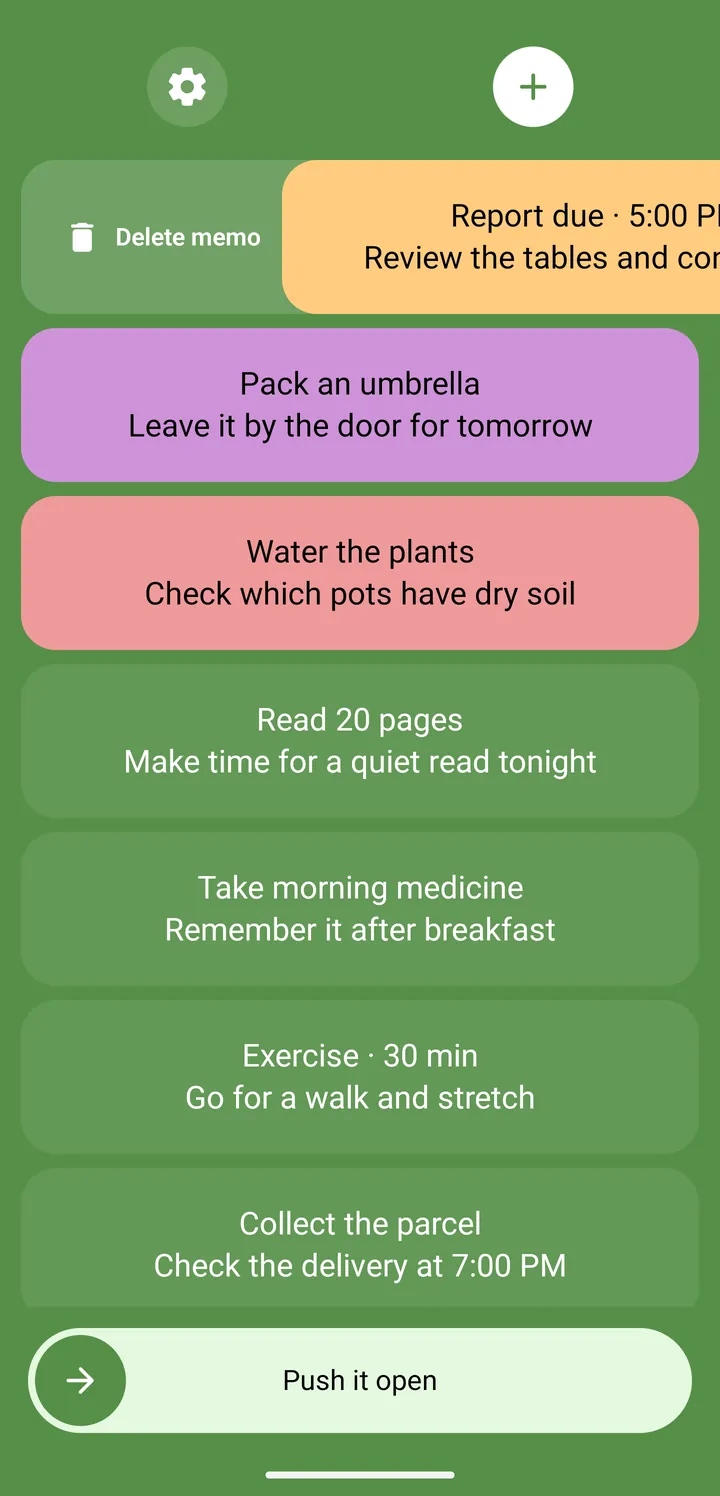
Swipe a note and it’s gone. Prefer to check it off first? Turn on swipe-twice: the first swipe strikes it through, the second deletes it.
 Couldn’t load the image
Every time you turn on your screen, your notes show up over the lock screen. Swipe away what you’ve done.
Get it on Google PlayNo memos yet
Add a memo to keep your next thought or task close at hand.
Press the power button on the right to wake the screen.Wake the screen and your notes come up first.Done with something? Swipe it aside.Deleted notes go to Trash, and you can bring them back right away.Slide the bar at the bottom all the way to open your phone.Your phone is open. Turn the screen off and on, and your notes are back.Swipe a note away, then slide the bar to open the phone.
Background color
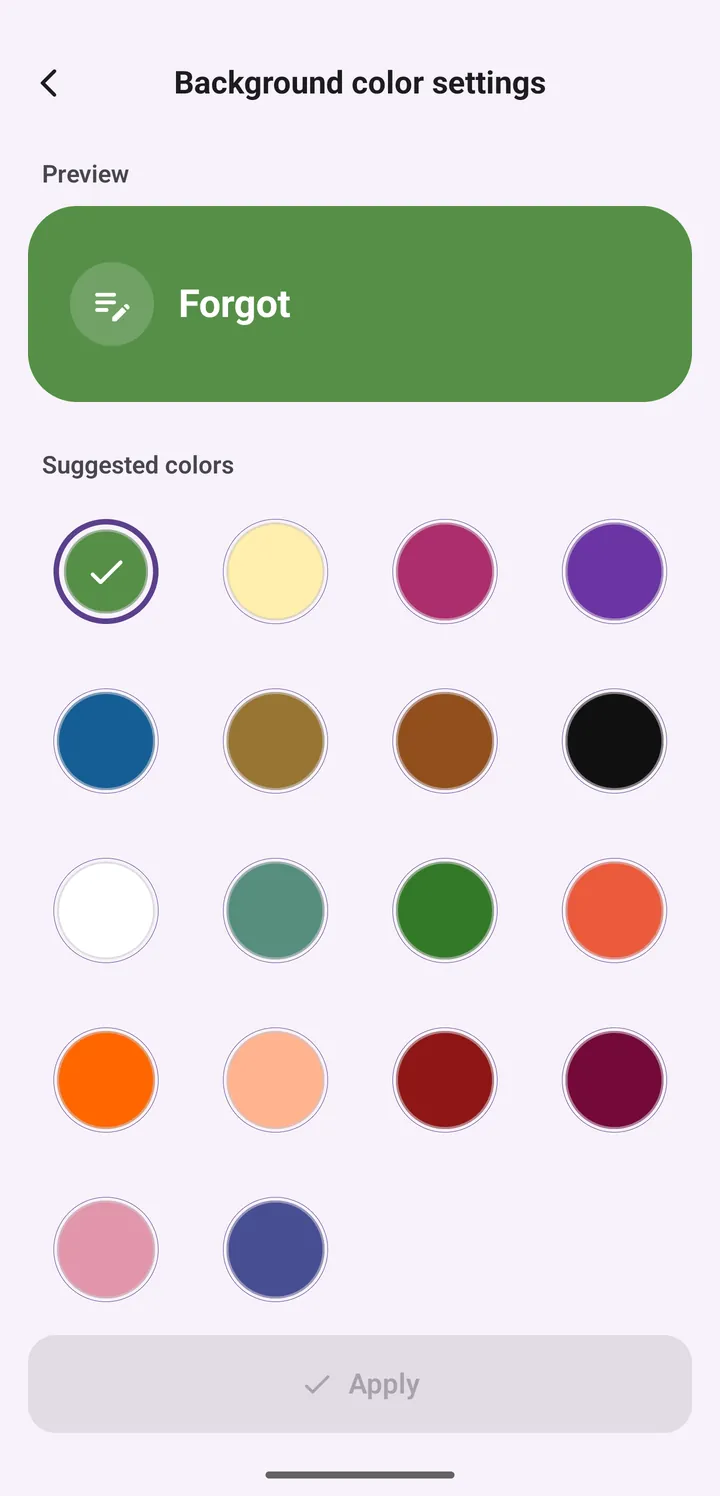
In the app, you pick from 18 preset colors in Settings.
Swipe it sideways to delete it. On a keyboard, press Enter or Delete.
Drag it all the way, or press Enter, to open the phone.
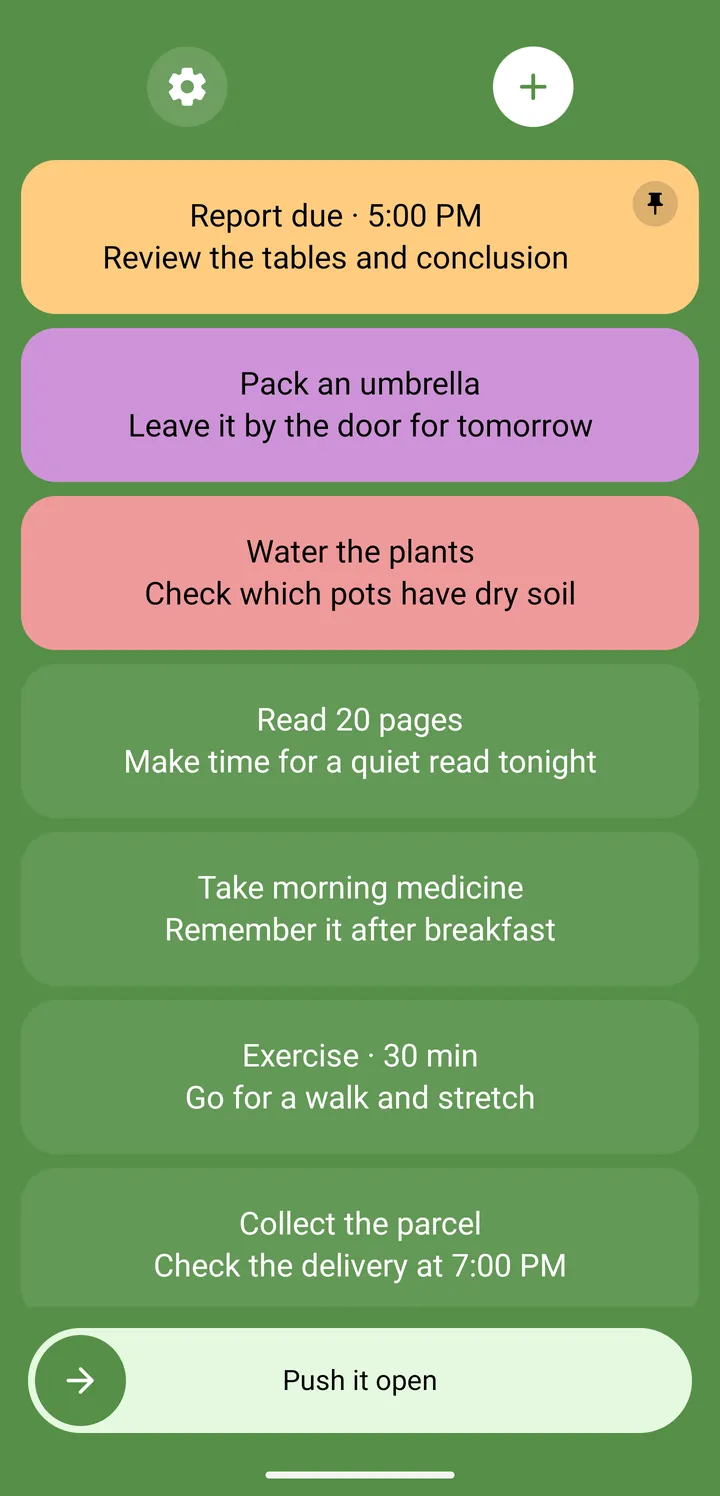
A web rebuild of the app’s first screen: five notes such as “Report due · 5:00 PM” on a green background, with the “Push it open” bar at the bottom.
Tap + and write a task or a note.
Every time you turn on your phone, your notes appear over the lock screen.
Swipe finished notes aside, then slide the “Push it open” bar to get to your phone.
Swipe to delete
Swipe a note and it’s gone. Prefer to check it off first? Turn on swipe-twice: the first swipe strikes it through, the second deletes it.
Couldn’t load the imageBackground
Pick the first-screen background from 18 colors, and give each note its own color too.
 Couldn’t load the image
Trash
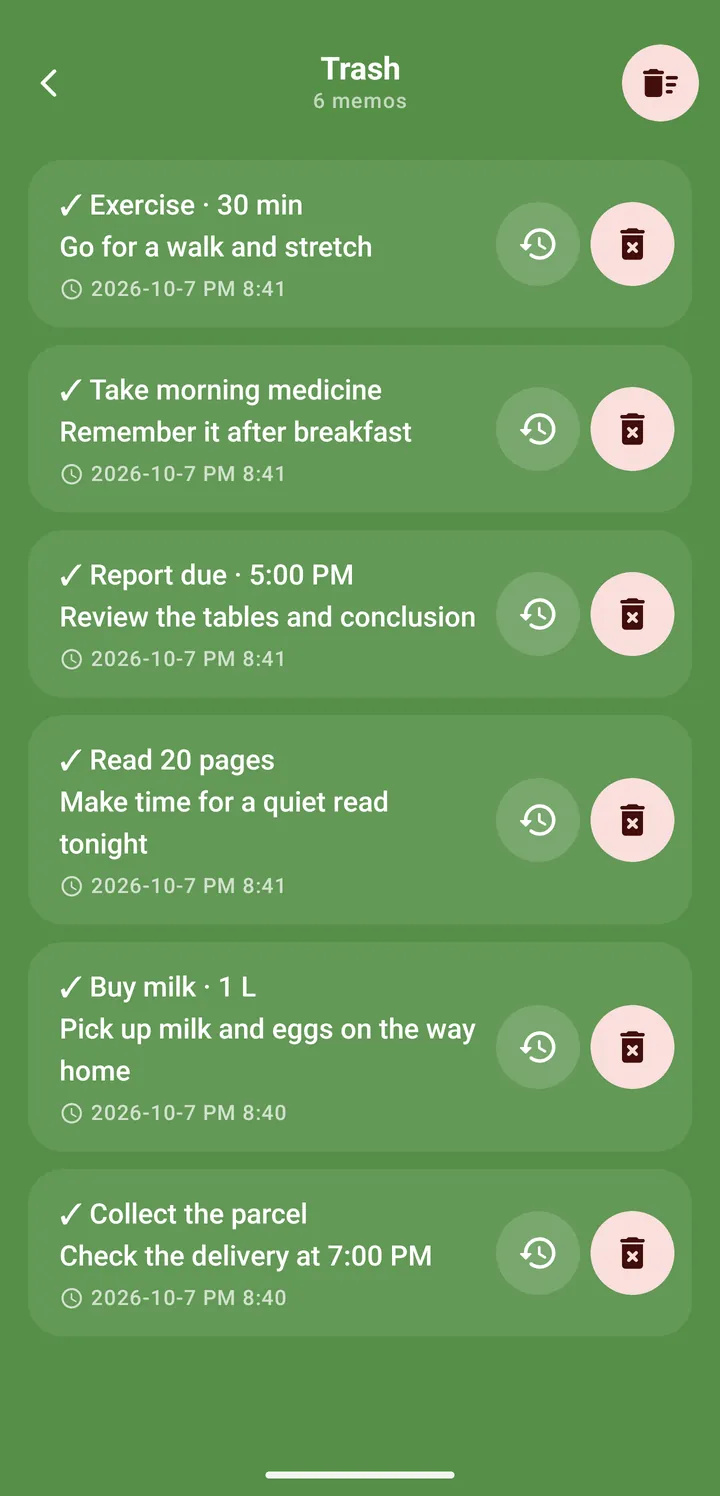
Deleted notes wait in Trash until you restore them or delete them for good.
 Couldn’t load the image
Text
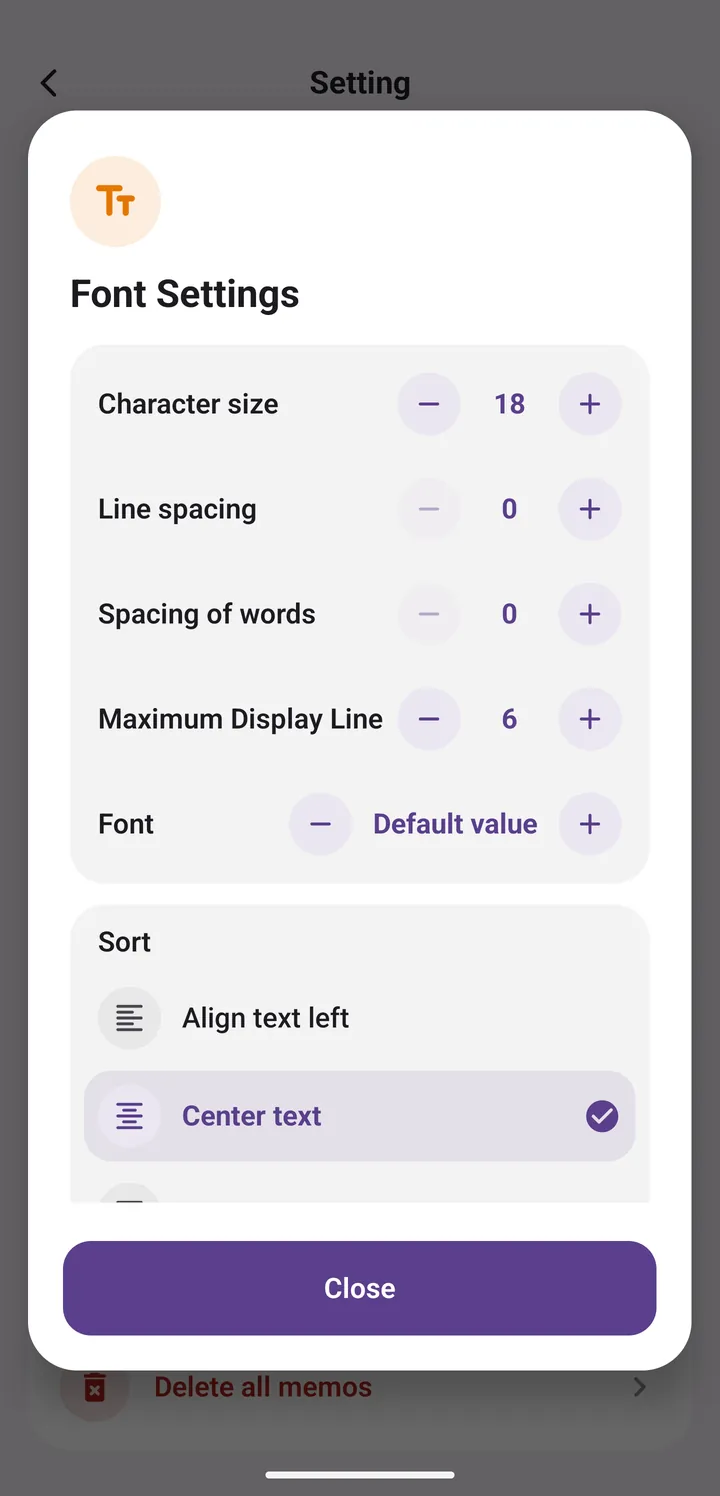
Adjust the font, text size, line and letter spacing, max lines and alignment to suit your eyes.
 Couldn’t load the image
Keep important notes at the top.
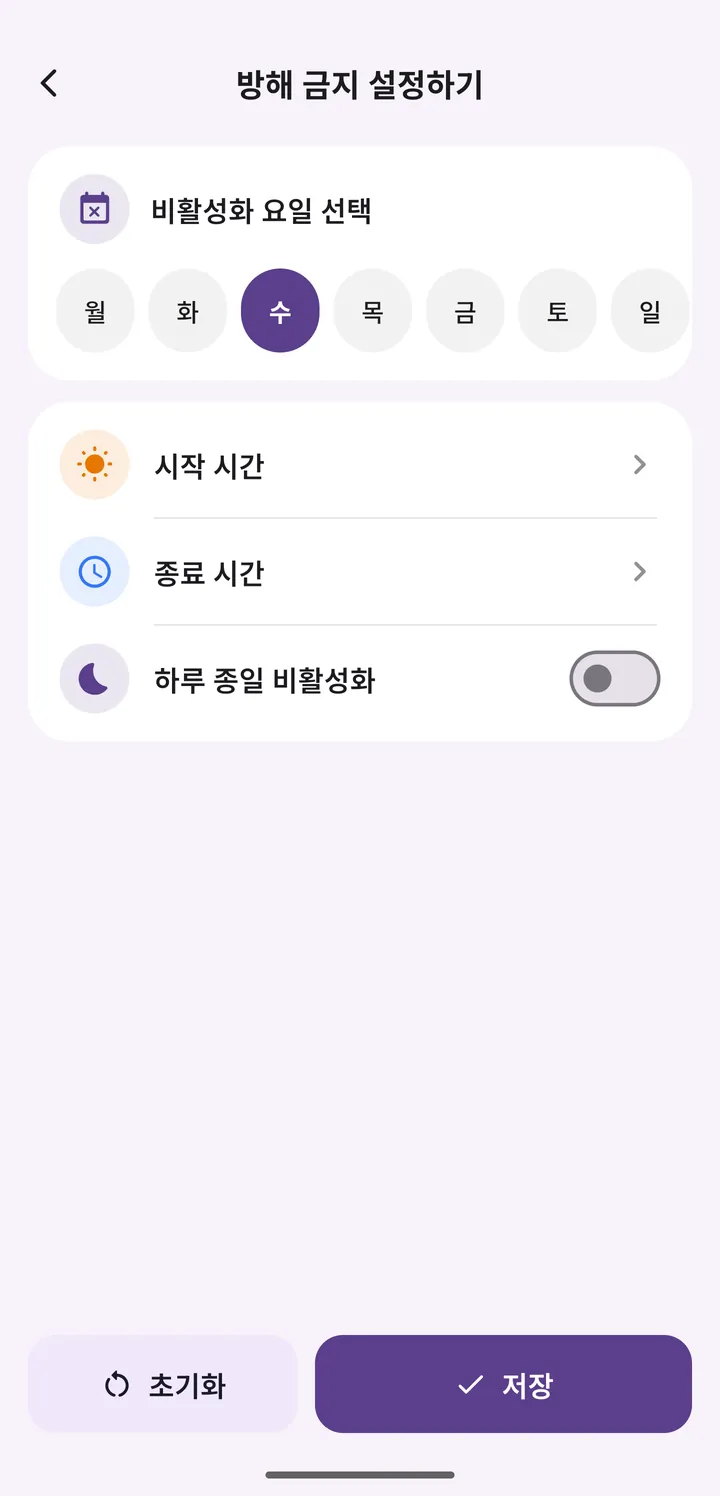
Pause the note screen on the days and hours you choose.
Attach a photo to a note and view it full screen.
Have a note read out loud to you.
With it on, a note is saved even if you leave mid-edit.
Move your notes to a new phone with a backup file.
Follows your phone’s dark mode setting.
16 languages, including English, Korean, Japanese and Simplified Chinese
Tap a screen to see it larger.
 Couldn’t load the image
Couldn’t load the image
Couldn’t load the image
Couldn’t load the image
Couldn’t load the image
 Couldn’t load the image
Couldn’t load the image
Couldn’t load the image
Couldn’t load the image
Couldn’t load the image
Watch how the app works in real use.
Have another question? Send us an email. [email protected]